
Before opening a project, the following prerequisites should be met: You should be logged in to the server. The footer of COMAN Manager will display:
-
A green server status indicator.
-
The name of the currently logged-in user.

Click File > Open.
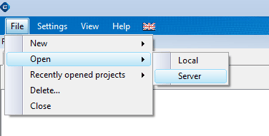
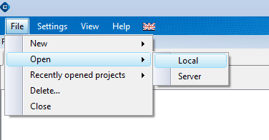
You can then choose between Server and Local.
- Server means that you work together with all authorized users on the server. Changes become available to all users immediately after saving.
- Local means that the project is stored locally on your device. Changes made locally are not visible to other users until they are synchronized with the server.
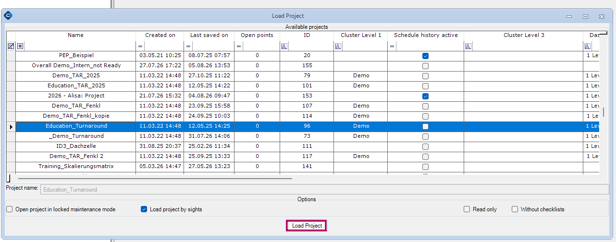
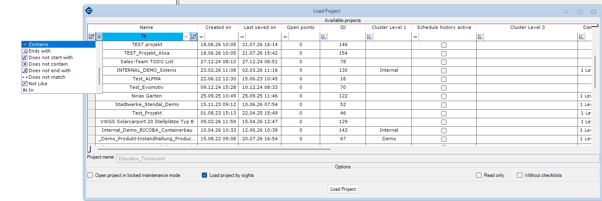
The project list opens. You can open a project by:
- Double-clicking the project name, or
- Selecting the project with a single click and then clicking Load Project.
The selected project is loaded.
Filter by Project Name
If the project list contains many entries(several projects), use the filter function to find a project more easily. Please note that the default filter setting expects the search term to appear at the beginning of the project name.
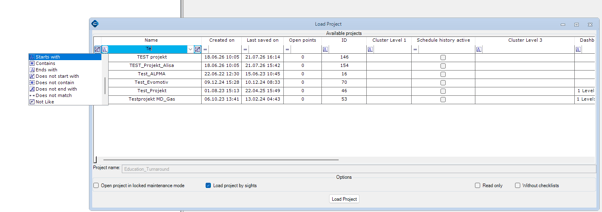
If your search term is only part of the project name, change the filter option to Contains. This allows the search term to be located anywhere within the project name.
Note: Opening a project automatically closes any project that is currently open. Therefore, multiple projects cannot be opened simultaneously.