
Delete Single Message:
Select a message and click Delete on the right. The message will be removed from the Messages view, but the data will remain stored in the database. 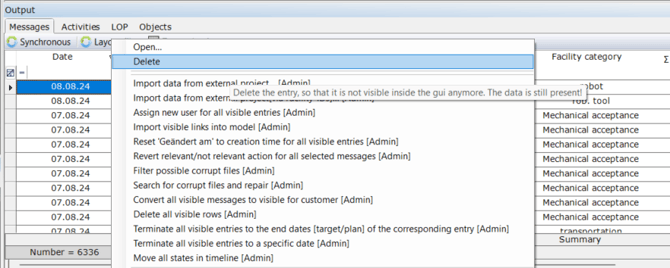
Delete Multiple Messages:
-
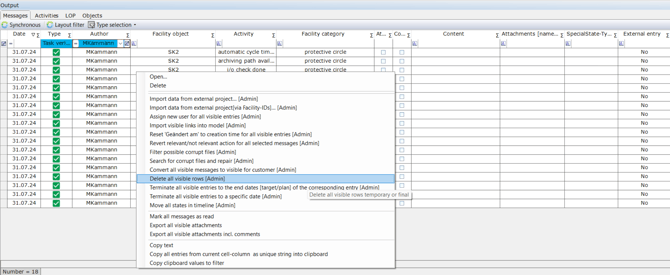
In the Message Table, apply the desired filter. Then right-click anywhere in the table. If you have the required permissions, the option "Delete All Visible Rows [Admin]" will be available.
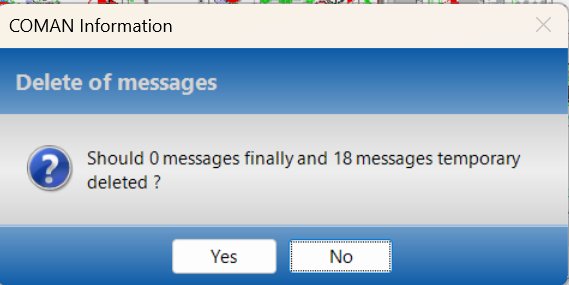
- A confirmation dialog appears. Click Yes to temporarily delete all visible messages.
-
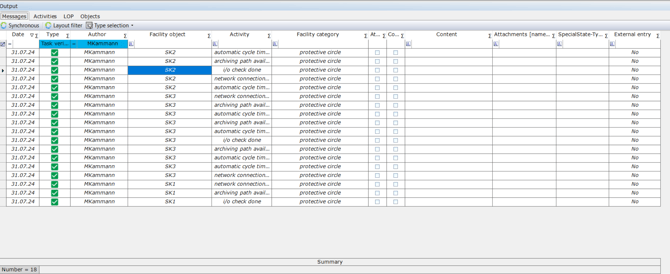
The deleted messages are not removed immediately. Instead, they are displayed in italic font, indicating that they are temporarily deleted.
-
In the Type Selection filter, select "Entries Deleted" to show all temporarily deleted messages.
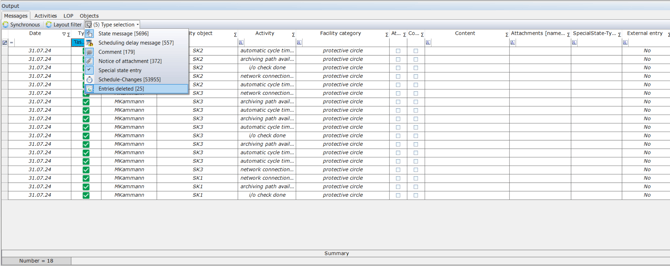
-
Right-click in the table again and choose "Delete All Visible Rows [Admin]". A second confirmation dialog appears, showing the number of messages that will be permanently deleted.
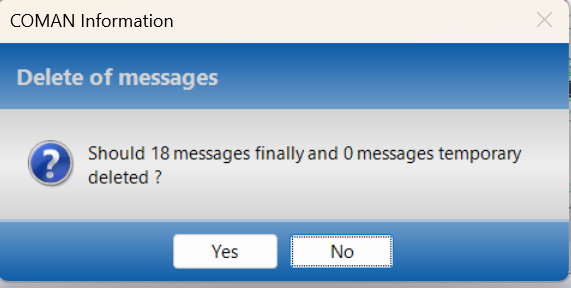
- Click Yes to permanently delete the selected messages. The entries are now completely removed from the Message Table.
