
In COMAN Manager, the project model of an existing project can be imported/copied into another project. This allows you to reuse nodes, tasks, checklists, and other model components without having to recreate them manually.
To transfer a project model, first export the source project. Instructions on how to do this can be found in the following article: ["Exporting a COMAN project"]
The exported project model can then be imported into the desired target project.
Follow these steps:
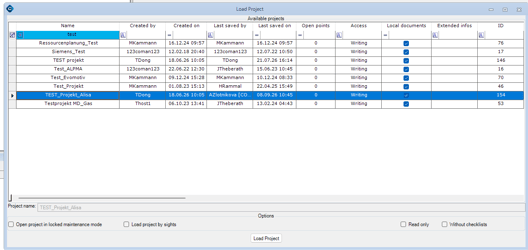
Open the project bar via "File" → "Open" → "Server". Then open the project into which the structure of the original project is to be imported.
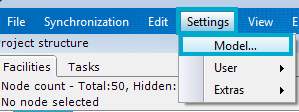
Open the "Model" module via "Settings" → "Model".
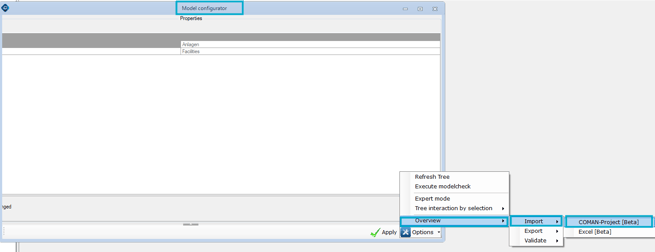
Select "Options" → "Overview" → "Import" → "COMAN Project (Beta)" in model configurator.
The "Local Data" window is then displayed. Select the previously exported project and open it.
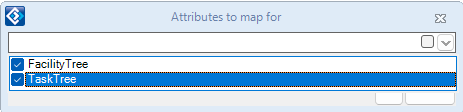
The "Attributes" window is displayed next. Select both of the following options:
- Facility Tree
- Task Tree
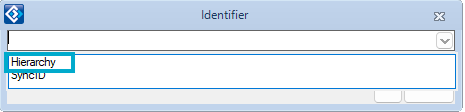
Under "Identifier", select the "Hierarchy" option. The project structure is identified based on the hierarchy.
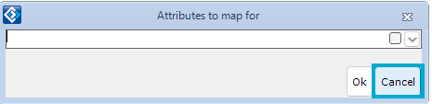
The system will then ask whether attributes should be assigned. In this case, please click "Cancel".
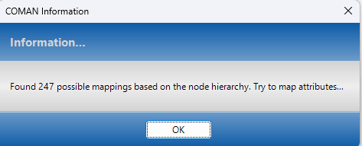

The first dialog window asks whether all nodes that are not yet present in the current model should be imported.
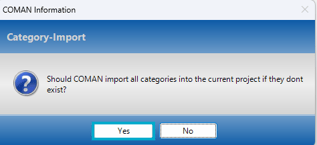
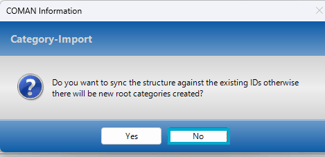
The second dialog window asks whether the imported nodes and processes should be matched with the project's existing synchronization IDs, or whether new synchronization IDs should be created for the newly imported nodes and processes.
Then click "Apply" in the bottom-right corner.
Check the completeness of the imported model. To do so, expand the plants/assets in the model and ensure that all nodes from the exported model have been imported successfully.
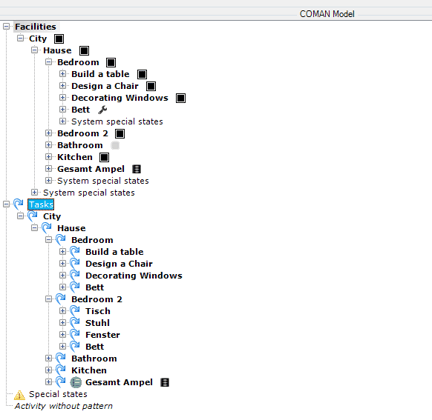
NOTE: If some nodes are missing from the project structure after the import, certain labels may not have been recognized by the system (for example, due to spelling errors) or may be incorrectly configured in the model. Therefore, please review the imported structure carefully.